DROK Voltage Supply Software
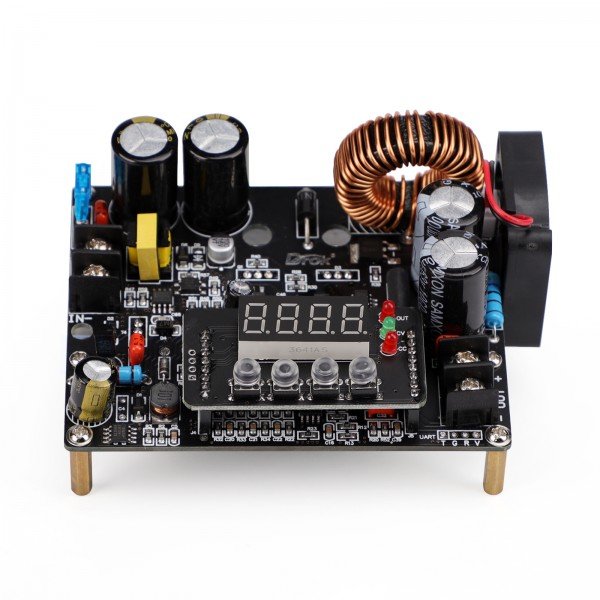
This program turns a PC into the front panel of a DROK DKP6012 buck power module (0-60 V / 0-12 A / 720 W) over a USB serial cable. You can set the output voltage and current limit, switch the output on and off, watch the measured voltage and current in real time, run scripted voltage profiles from CSV files, and log everything to CSV for later analysis. It is a Python/Tkinter application; a packaged Windows executable is provided below - no Python install needed.
This is a hobby project that I worked on to make improvements and automation for my other work. If you're interested in doing this yourself, a quick web search will show you that there are also many libraries out there on GitHub that let you automate talking to the DROK controller.
Download
Download the Windows release (compiled executable + sample profiles):
VoltageSupply-win64.zipThe zip contains VoltageSupply.exe (single file, no installer, no Python required) and the profiles/ folder with ready-made test profiles. The app icon and the built-in user manual are bundled inside the executable. Extract the folder and double-click VoltageSupply.exe.
Hardware
The DROK DKP6012 is a bare buck converter module: it needs a DC input supply (10-65 V), its output wires go to your load, and a USB-to-TTL serial adapter (3.3 V logic) connects its UART port to your PC - only three wires (TX, RX crossed, and GND). UART must be enabled once on the module's own front-panel menu (hold SET, go to F3, set it to 00, confirm with OK); after that the module answers at 9600 baud. The program probes candidate COM ports with a real command before auto-connecting, so phantom ports from previously plugged adapters are skipped. The output is always forced OFF when the program connects and again when the window closes.
Application
The window has four tabs, split by function.
Voltage Supply Page
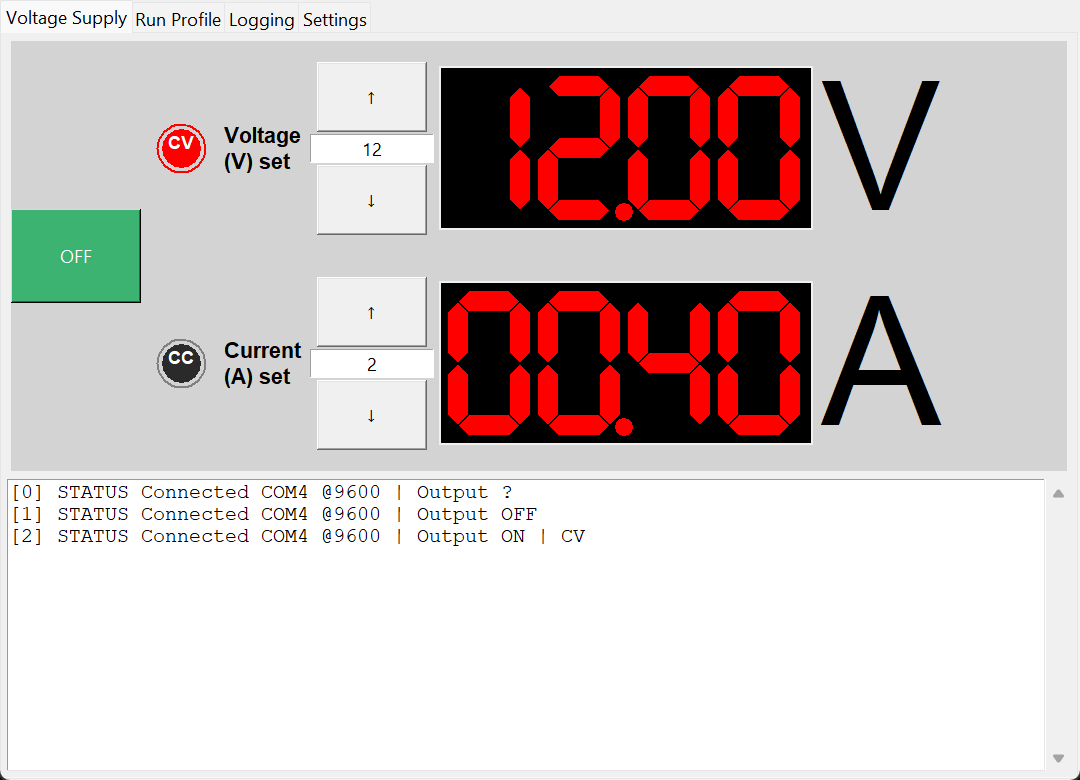
- ON/OFF button: switches the module output on and off. Green means the output is live (confirmed by the module), grey means armed but off, dim means not connected. The output is also switched off automatically when the window closes.
- CV / CC indicator lamps: two round lamps light red to show how the module is regulating - CV (constant voltage) when the output sits at the set voltage, CC (constant current) when the current limit is reached and the module throttles voltage to hold current.
- Setpoint controls: each setpoint (voltage 0-60 V, current 0-12 A) is one editable entry box with up/down arrow buttons. Type a value and press Enter, or click the arrows (step size settable on the Settings tab). On every connect the program reads the values the module is actually holding and fills the boxes, so they match what the DROK was left set to.
- 7-segment displays: the big red four-digit displays show the MEASURED output voltage and current (not the setpoints) as reported by the module, refreshed about 5 times per second.
- Command log: the scrollable text area along the bottom timestamps every significant event - commands sent, profile runs, connect/disconnect - your black box when something looked odd.
Run Profile Page
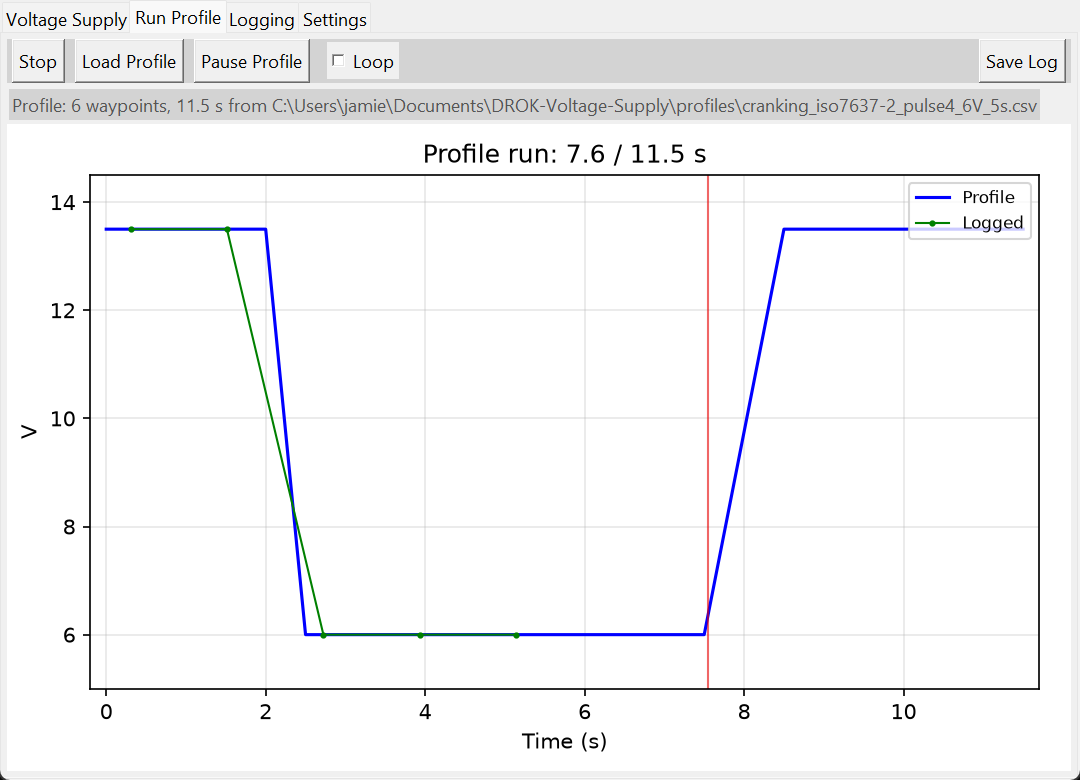
- Load Profile picks a CSV file describing a voltage curve over time; it is plotted immediately (no connection needed to load). Run Profile hands the curve to the driver, switches the output on and walks it, applying interpolated setpoints at the DROK's 300 ms command pace. The button becomes Stop while running.
- The graph shows the loaded profile as the plan (blue line). During a run a red playhead sweeps across it, measured samples are overlaid as a green 'Logged' trace (plan vs. reality at a glance), and the title shows the run clock, e.g. 'Profile run: 12.3 / 32.0 s'.
- Pause Profile freezes a running profile at its current waypoint (output stays ON, no commands sent); pressing it again continues from exactly that point. Loop replays the profile until you press Stop - with Loop the Logged trace scans like an oscilloscope, each pass overwriting the previous.
- Save Log writes the last run's samples (time, measured V/A, setpoint V/A) to a CSV file.
- Pace rule: the module accepts one command every ~300 ms, so a normal step takes about 1.2 s - design profiles with holds of at least 2 s. The shipped sample set was pruned with an automated validator so every sample is actually followable command-for-command.
Logging Page
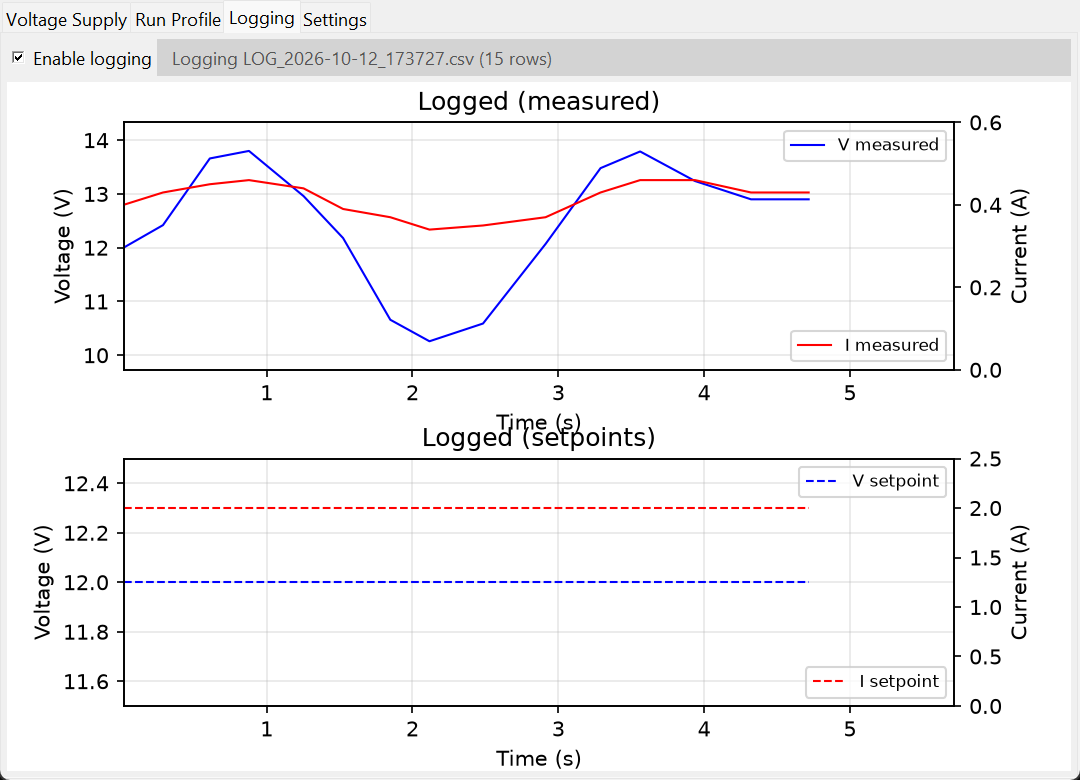
- Tick 'Enable logging' and every measured sample is written at about 4 rows per second to one continuous CSV file per session in the logs/ folder, named by start time (LOG_2026-10-12_143022.csv). The label names the open file and counts rows.
- Each row: timestamp, time_s, voltage_V, current_A, setpoint_voltage_V, setpoint_current_A. The setpoint columns are what the PROGRAM commanded (your entry-box value or the profile curve), never an extra measurement; at connect the program asks the DROK once what setpoints it was left with, so the columns are correct even if you never touched the boxes - with no ongoing serial traffic.
- A scrolling ~60-second graph shows the captured data in two rows: measured V (blue) and I (red) on top, setpoint V and I dashed below. Both rows auto-scale their axes to the data in the window, so low-voltage activity fills the plot instead of hugging the bottom.
Settings Page
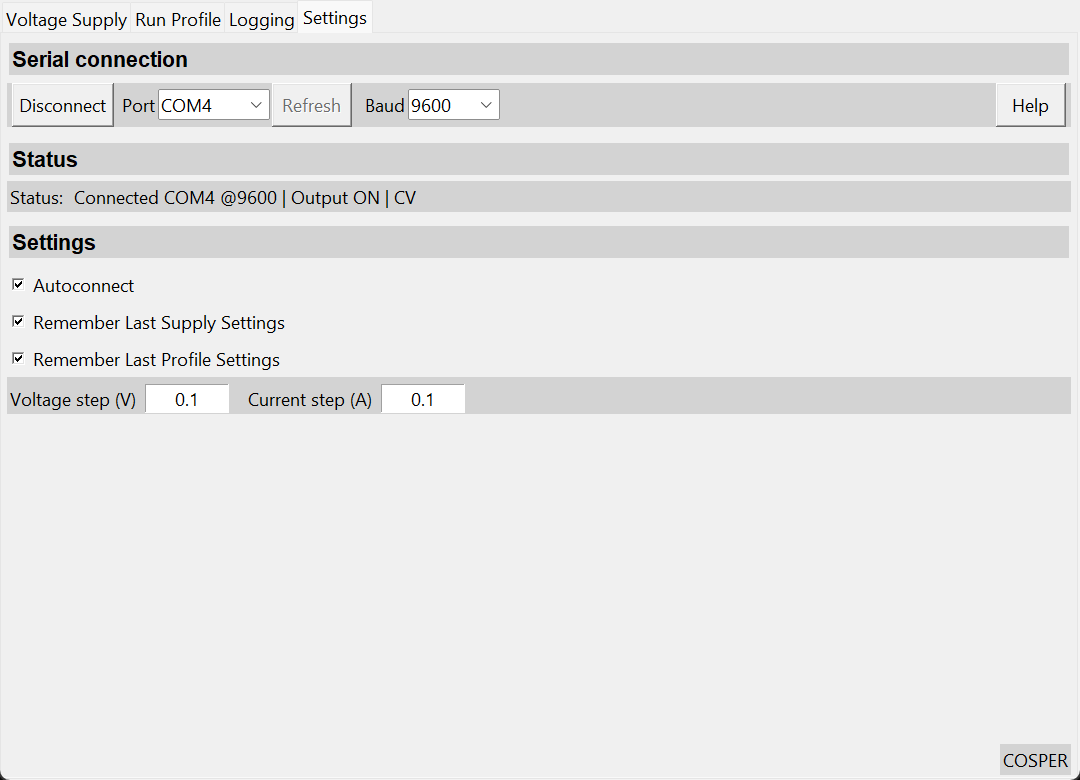
- Serial connection: port dropdown (Refresh re-scans), baud dropdown (keep 9600 - the DROK's native rate) and Connect/Disconnect, with a live status line 'Connected COMx @9600 | Output ON/OFF | CV/CC'.
- Checkboxes (all persisted): Autoconnect dials the remembered port at start-up after probing it with a real command; Remember Last Supply Settings saves port, baud and setpoints; Remember Last Profile Settings silently re-loads the last profile CSV at start-up.
- Arrow-button step: Voltage step (V) and Current step (A) set how much one click of the up/down arrows changes the setpoint (0.01-1, default 0.1).
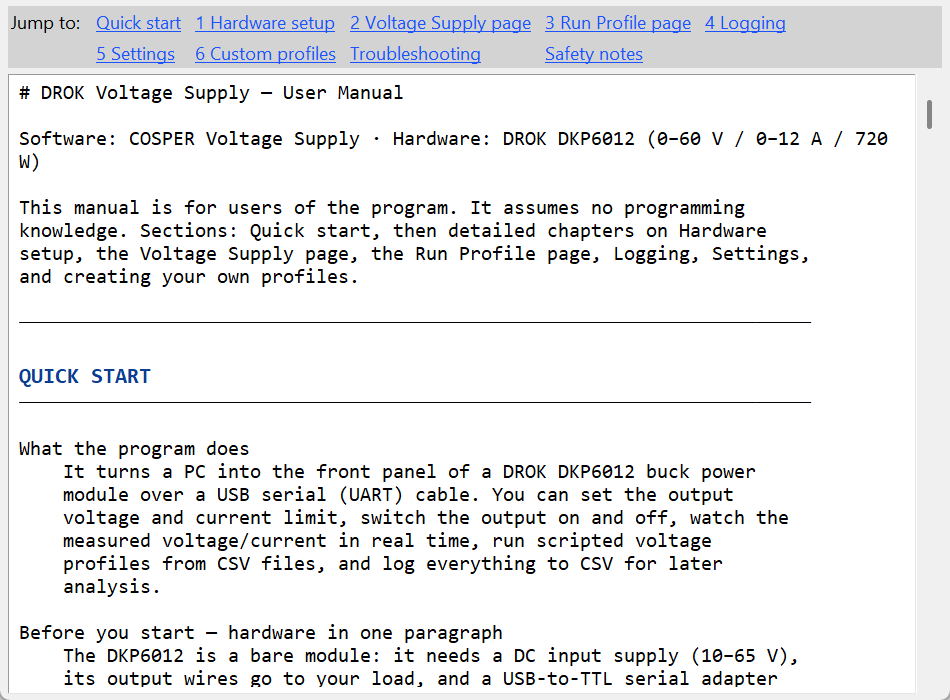
- Help opens the full user manual (hardware setup, every page, profile format, troubleshooting) in a separate window with a 'Jump to' link bar - no external files needed; the manual ships inside the executable.
Built-in Help
Every screen above is documented in the built-in manual: quick start, step-by-step hardware wiring (including the UART enable sequence and the three-wire connection), each page in detail, the logging CSV format, and creating custom profiles with worked recipes. The Help button opens it in-app with section links.
Sample Profiles
The zip ships ready-made CSV profiles in the profiles/ folder - bench shapes plus automotive/industrial standard tests shaped to the engine's command pace (every hold at least 2 s, every edge a ramp of at least 0.3 s, all verified by an automated validator):
- step_0-16V_1V_per_s.csv - +1 V/s up to 16 V, then -1 V/s back down
- power_cycle_0-13.5V_0.2Hz.csv - on/off endurance soak, ideal on Loop
- iso16750-2_slow_V_change_6-16V_0.5V_per_min.csv - ISO 16750-2 slow voltage change (42 min per pass)
- iso16750-2_endurance_staircase_6-18V.csv - Table-1 levels plus 16.5 V jump-start and 18 V regulator-failure dwells
- cranking_iso7637-2_pulse4_6V_5s.csv - ISO 7637-2 pulse 4 cranking dip to 6 V, slowed to a trackable pace
- telecom_en300132-1_-48V_band_40.5-57.25V.csv - ETSI telecom tolerance band (run positive)
- industrial_en61131-2_24V_band_19.2-28.8V.csv - EN 61131-2 24 V tolerance dwells
Creating Your Own Profiles
A profile is a plain CSV file with two or three columns per row: time in seconds, voltage in volts, and an optional current limit in amps. Any spreadsheet or text editor can create one - you only list the corners (waypoints) of the shape you want and the program interpolates linearly between them. The Load Profile dialog opens on the sample library; files are validated on load and errors name the offending line.
Getting Started
- Wire the module (the 'Hardware' section above) and plug the USB adapter in.
- Extract the zip and double-click VoltageSupply.exe - no Python install needed.
- The window opens with four tabs. With Autoconnect on (the default) it dials the last-used port by itself; otherwise pick the port on the Settings tab and press Connect, then check the status line reads 'Connected COMx @9600'.
- On the Voltage Supply tab type a voltage (e.g. 12) and a current (e.g. 1), press Enter, then click ON. The button turns green, the CV lamp lights and the big red displays show the measured output.
- Load a sample profile, tick Loop if you like, press Run Profile and watch the playhead walk the curve while the green trace records what the supply actually did.